Claim and Use Your Bot's Email Address
Say 'Get yourself an email address.' Grok Bot asks which name you want, checks that it's free, and shows an approval card. Once you approve, you have...
Answer first: Say "Get yourself an email address." Grok Bot asks which name you want, checks that it's free, and shows an approval card. Once you approve, you have [email protected]. Use it for newsletters, receipts and signups. The Bot reads that mail when you ask or when a routine runs, and every outgoing email waits for you to press Send.
Test status: on 2026-10-16 I ran the availability check, and it reported
[email protected]as available. I deliberately did not claim it, because claims are permanent. The listing tool confirmed this account has no address yet. Everything else comes from the official agent-email help page.
Who it's for
Anyone who wants a separate inbox for bot-related mail: newsletter digests, receipt collection, or signing up for trial tools without using a personal address.
Steps
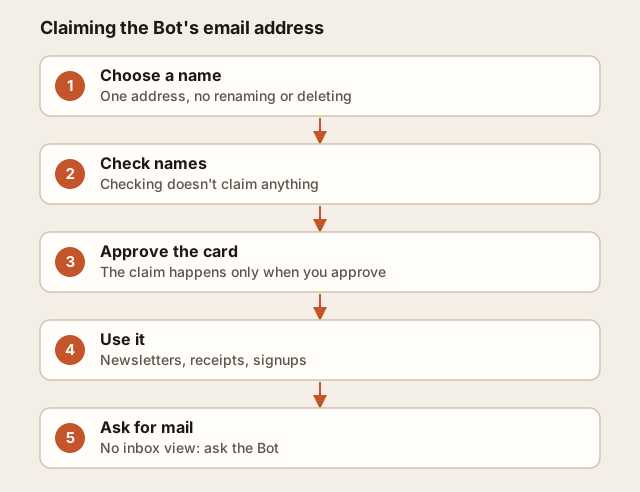
- Choose the name carefully. You get exactly one address, and you can't rename or delete it. Names use lowercase letters, digits,
.,-and_, with up to 64 characters. Reserved words such assupport,admin,billing,grokandhelpare rejected. - Ask the Bot to check 2–3 candidates first. Checking doesn't claim anything.
- Approve the claim card for the one you want.
- Subscribe newsletters or forward receipts to it.
- Ask "What arrived in your inbox today?" There's no inbox view and no notifications, so you get mail by asking or with a routine.
Copy-paste prompt
Check whether these names are free for your email address: <name1>, <name2>, <name3>. Don't claim anything yet.
Then:
Claim <chosen-name>. After that, every Monday at 9:00 AM summarize newsletters that arrived in your inbox last week, 1 line each with the sender.
Expected result
An approval card, then your address shown in the Email plugin with a copy button. After that, you get a weekly newsletter roundup in chat.
Gotchas
- Team accounts: an admin has to turn on Agent Email first.
- Incoming limits: up to 10 attachments per message, 10 MB each and 25 MB total. Larger ones are skipped.
- Mail that arrived in the last minute may not show up in a search yet.
- Messages that fail spam or virus checks keep no body and never trigger routines.
- Instructions inside a received email never count as your permission to do something.
FAQ
Can it send from this address? Yes, but only as a draft that you approve each time. Up to 50 recipients per email. Can my other Bots use it? Yes, in your own chats and routines. Not in Slack threads or other people's chats.